Each chapter folds together the Codex team's official positioning (what the product is) with field reports from people running Codex daily (what actually works).
Academy from the OpenAI Academy session Dimillian workstream automations Baumann monothread patterns
Chapter 01The shift: from writing code to delegating outcomes
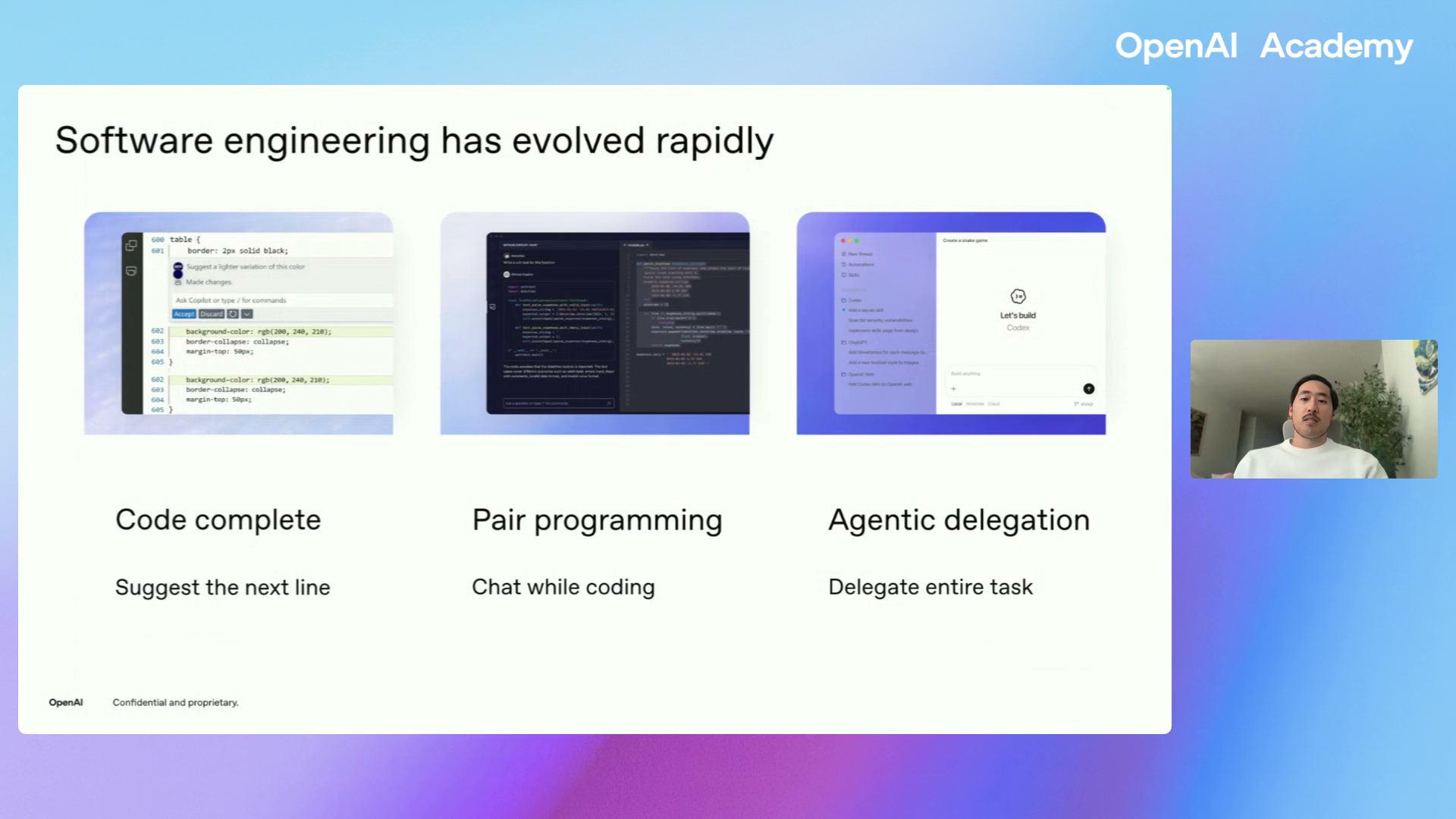
Software tools have moved through three phases — suggestion, collaboration, and now agentic delegation. You describe the outcome; the agent handles the steps in between.
Why this matters for everyone, not just engineers
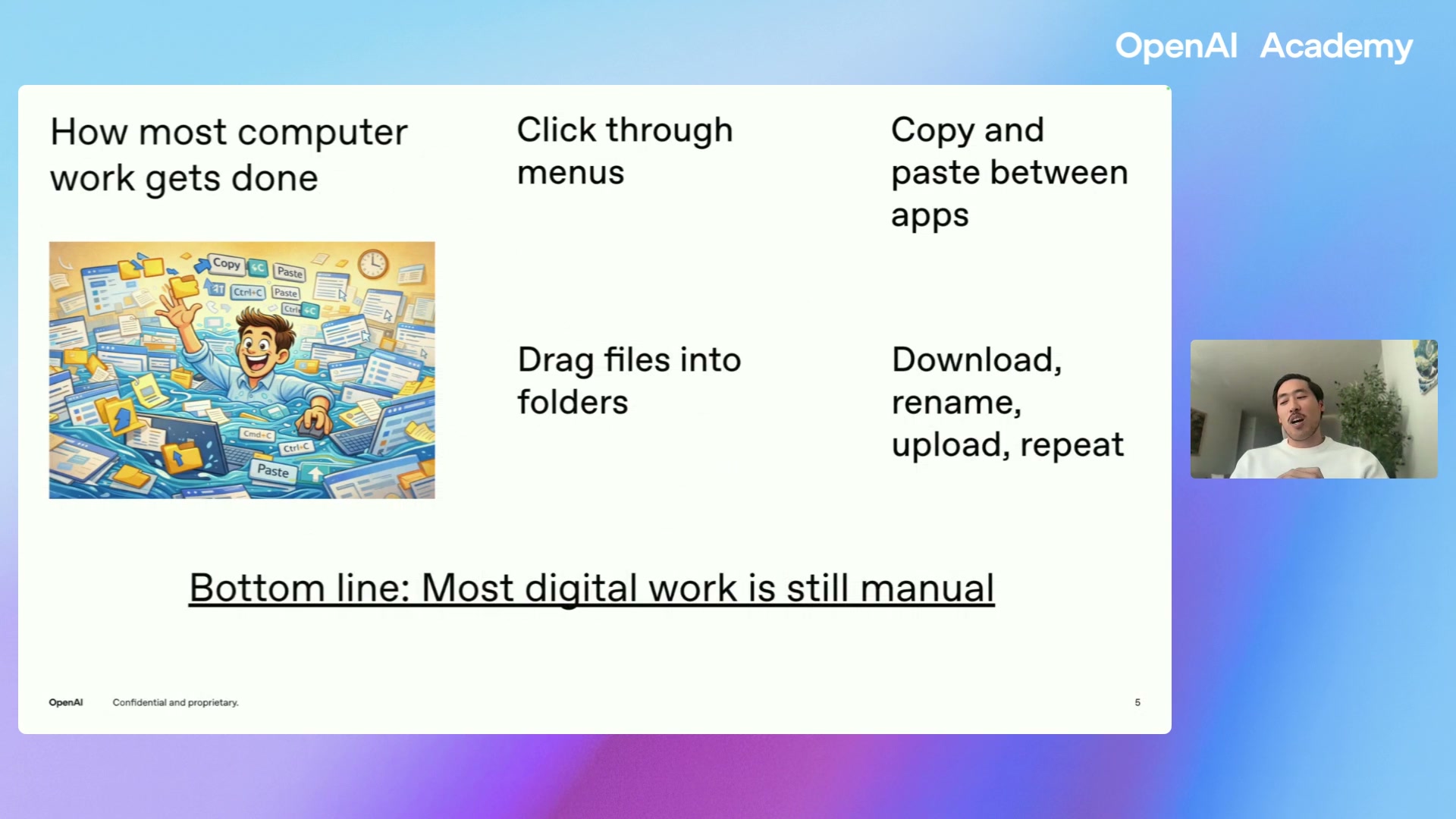
Most computer work today is knowledge work, not software engineering: organizing files, summarizing documents, analyzing data, preparing reports. Codex is designed to automate that loop — the download / rename / upload cycle that fills a week.
You do not need to master every technical concept before starting. You need a problem and an outcome. The agent closes the gap between idea and working result.
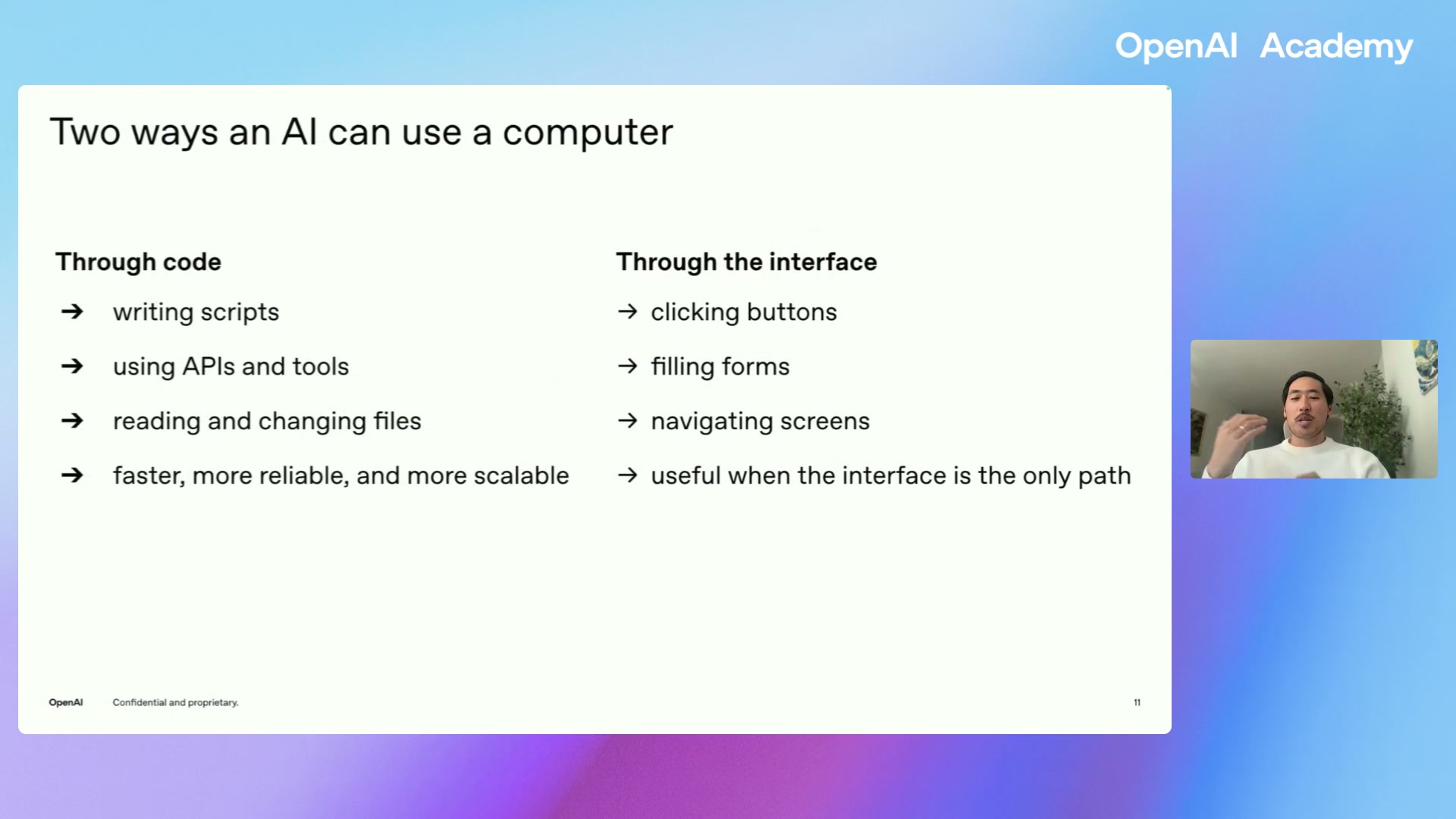
Two ways an AI can drive a computer
Chapter 02Anatomy of Codex — Model, Harness, Surfaces
When people say “Codex” they mean three things working together.
Model
The intelligence — the brain. It plans, reasons, reads what exists, makes changes, and checks results. Longer runs usually mean deeper reasoning.
Harness
The safety layer. It gives the model a controlled way to read files, edit them, run commands, validate output, and stay inside boundaries you set.
Surfaces
The ways you interact with the same agent. Same brain, different distance from the work.
Models and reasoning depth
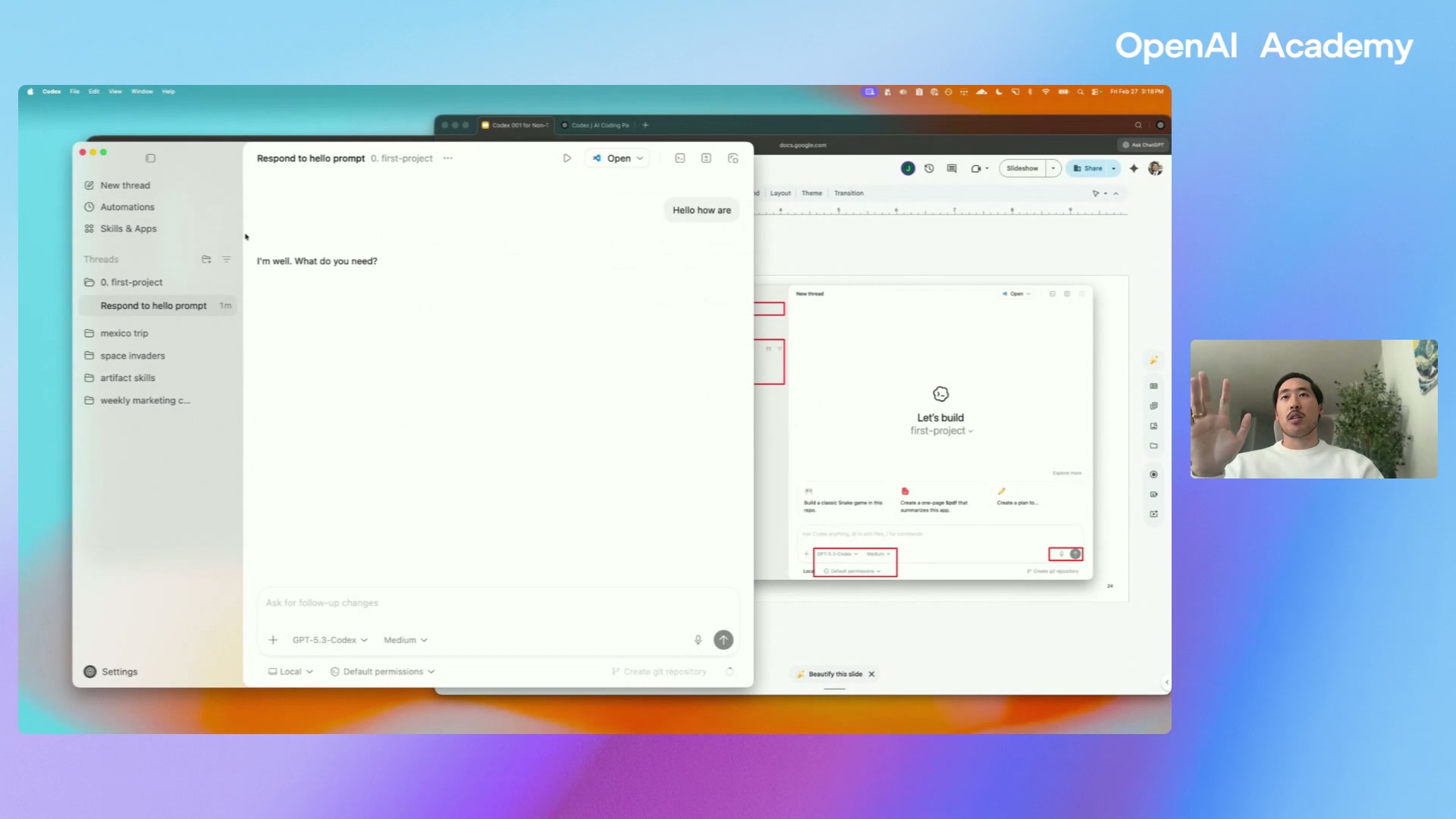
GPT-5.3-Codex
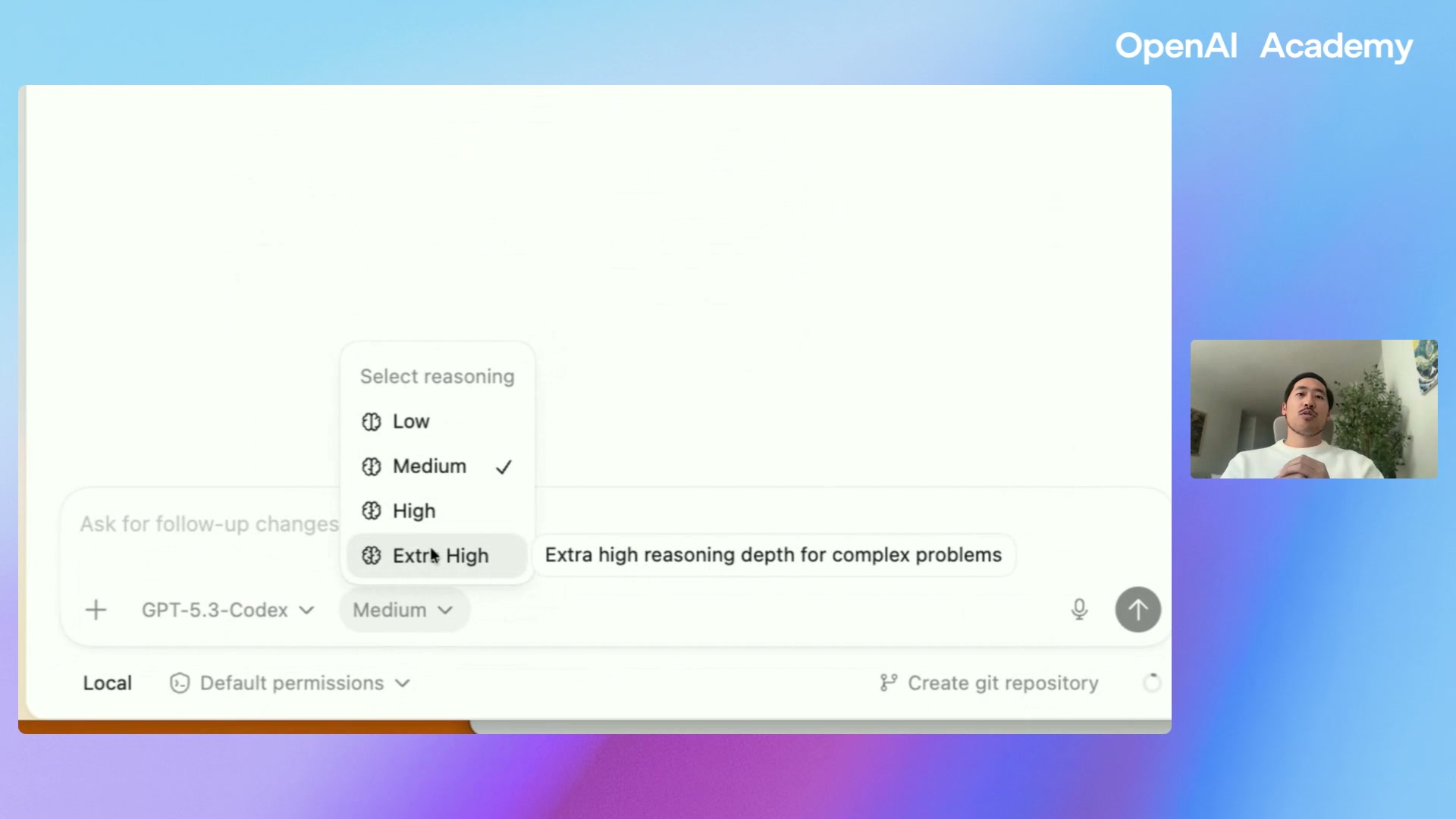
The state-of-the-art model for code and agentic tasks. Four reasoning levels:
- Low — fastest, simple asks
- Medium — default, balances speed and depth
- High — more thinking for harder problems
- Extra High — deep reasoning for genuinely complex tasks
Codex Spark
A blazing-fast sibling model. Writes a 522-line Space Invaders clone in roughly 5 seconds — good for rapid prototyping and multi-turn UI tweaks. Currently on Pro tier, rolling out to others.
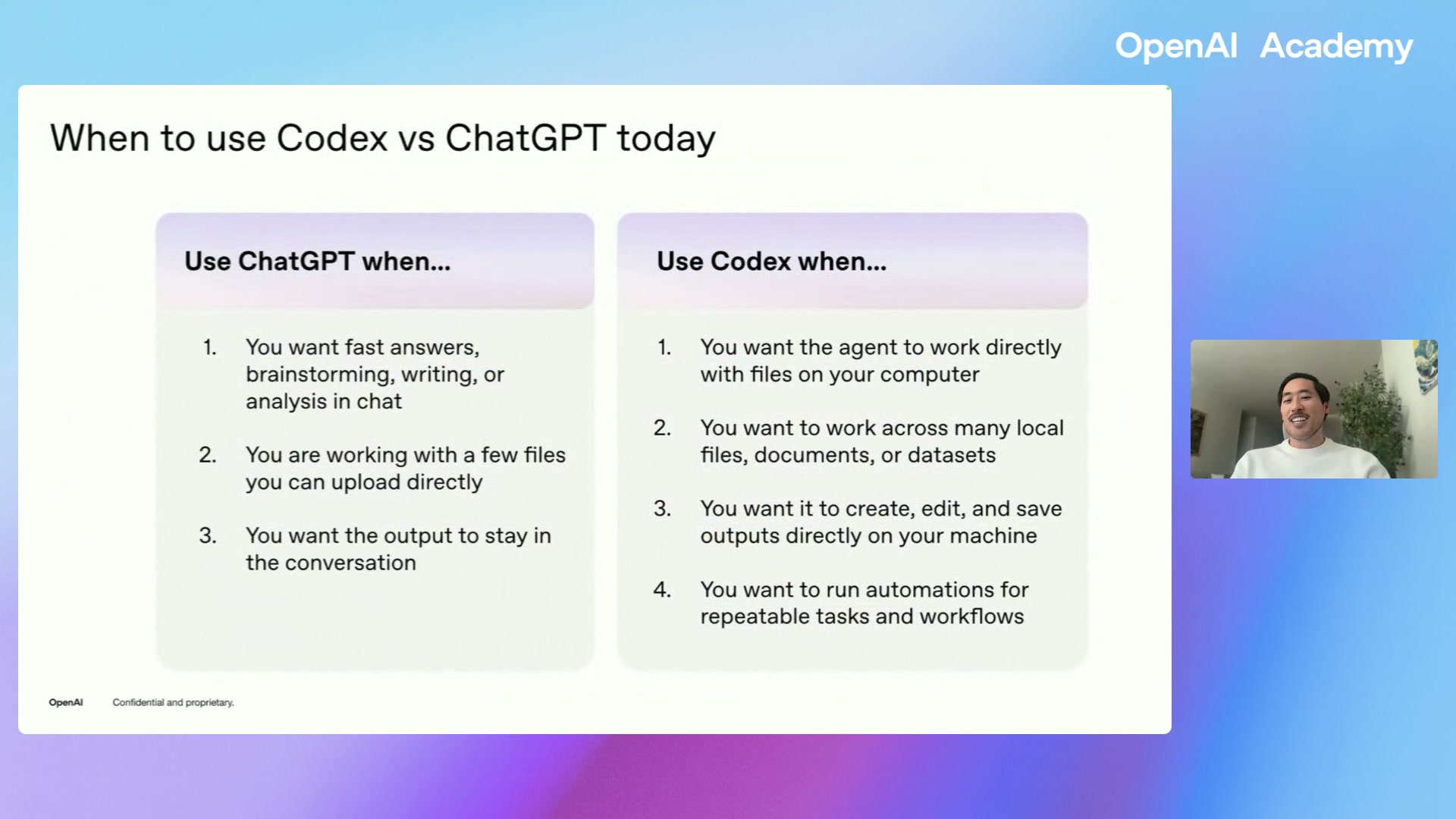
Codex vs ChatGPT — when to reach for which
Chapter 03Getting started: download, sign in, first project
Setup takes about three minutes. You need a ChatGPT account and a Mac. Windows is in invite-only early testing and shipping broadly “very, very soon.”
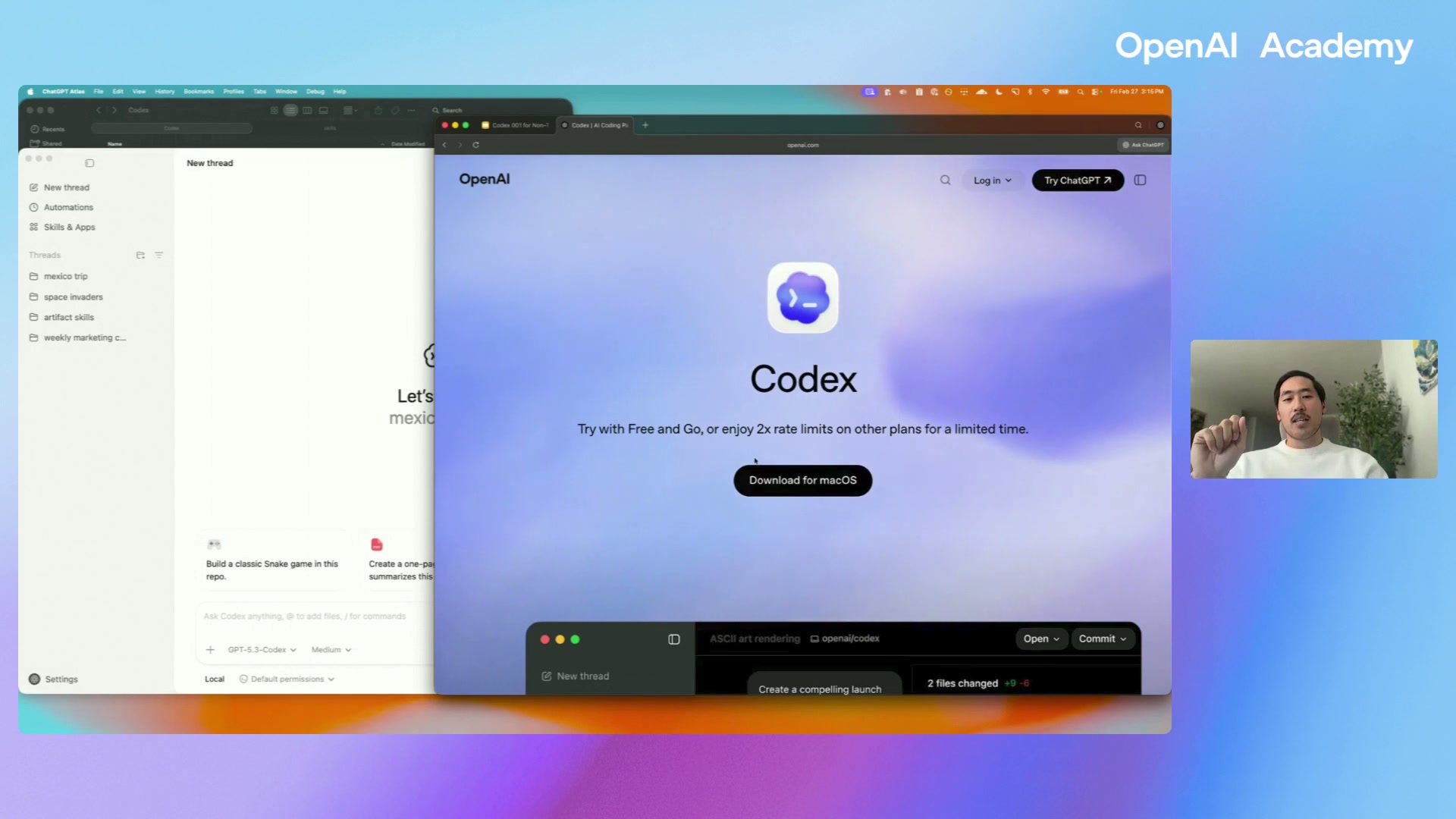
openai.com/codex and click Download for macOS.Four steps to your first project
- Download & install the app from
openai.com/codex. - Sign in with your ChatGPT credentials. Codex is available on all tiers, including Free for a limited time.
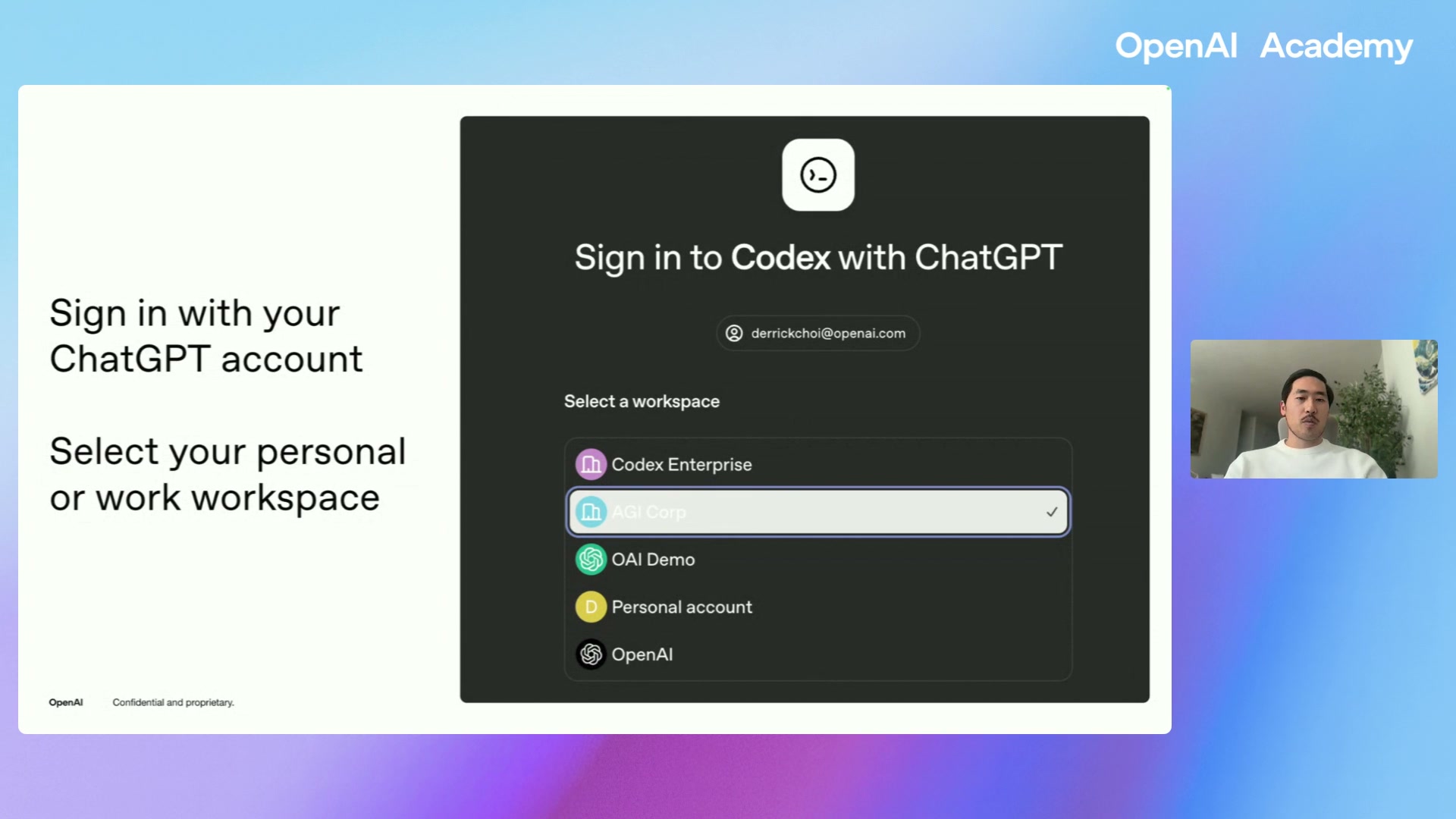
- Select a workspace — Personal or Work. Both work identically; the choice affects which apps/integrations show up.
- Create an empty folder on your Mac called something low-stakes like
first-projectand add it from the app sidebar.
Don't point Codex at your most important folder on day one. A dedicated sandbox folder lets you experiment without worrying about anything important being touched.
Downloading and signing in
Platform availability
macOS
General availability. All ChatGPT tiers including Free (limited time).
Windows
Invite-only early testing; broad release imminent. Search Codex Windows on X for updates.
IDE & CLI
Same underlying agent, different surface. For users who want to stay closer to code.
Chapter 04The interface: threads, reasoning, permissions
The Codex app has a lot of surface area. You don't need all of it on day one — these are the controls that actually matter.
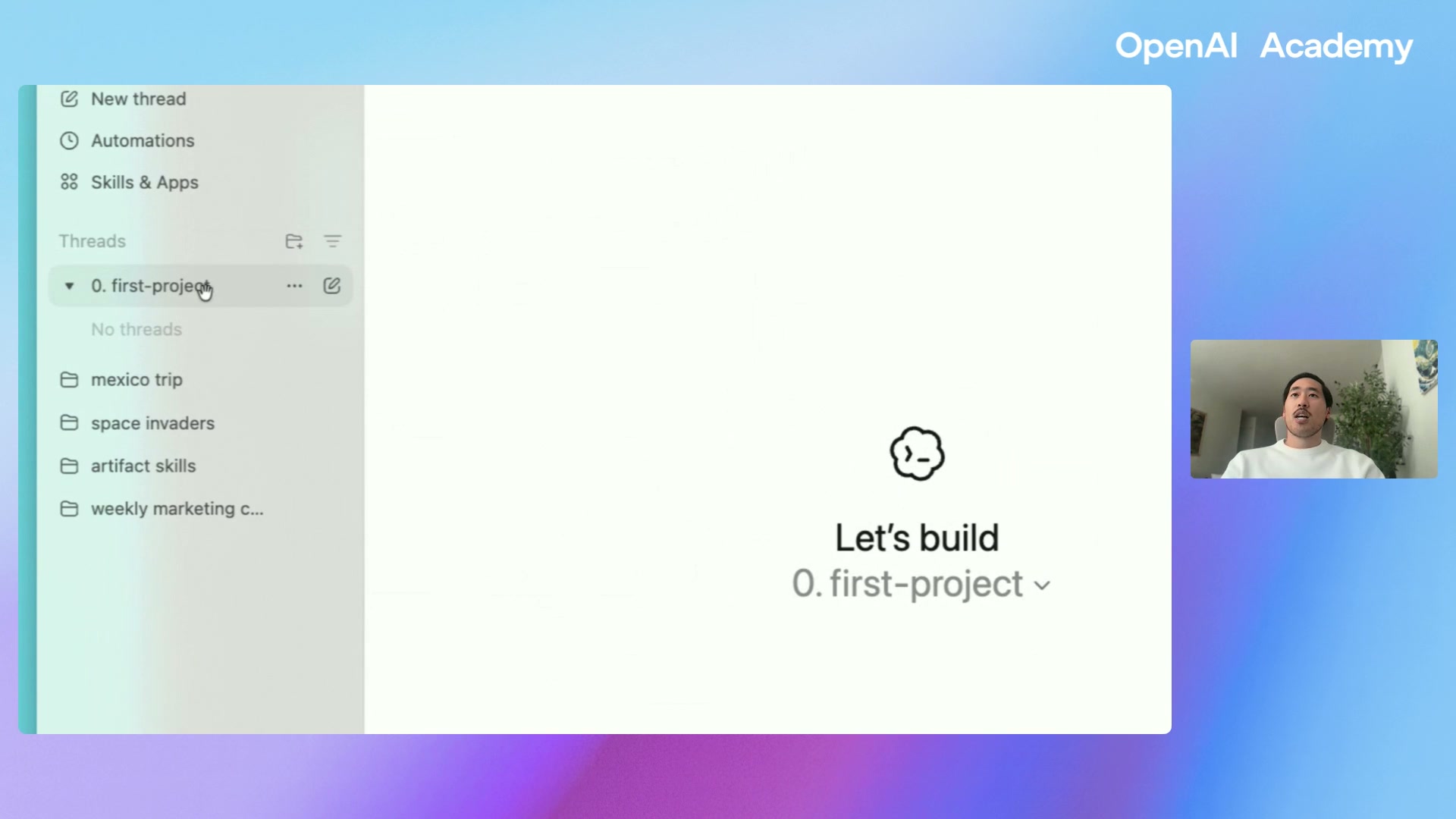
The controls you'll actually touch
- New thread — a fresh conversation, scoped to the project folder.
- Projects — one per folder on your computer. Add as many as you like.
- Model picker (bottom of composer) —
GPT-5.3-Codexby default; switch toSparkfor speed. - Reasoning effort — Low / Medium / High / Extra High. Starts on Medium; raise it for harder asks.
- Permissions — Default permissions (sandboxed) vs. Full access. Toggle only when you know what you're asking for.
- Local / Cloud toggle — where execution happens.
- Voice dictation — mic icon in the composer; useful for long, rambling prompts.
The sandbox: the single most important safety concept
Codex ships in a sandbox. Under Default permissions, it can only run commands and edit files inside the project folder. When it needs anything beyond that, it pauses and asks — in the chat, in plain English. You always approve explicitly.
Plan Mode — see the intent before execution
On Mac, press Shift + Tab (or the + button) to toggle Plan Mode. Codex will ask follow-up questions and output a written plan of what it's about to do before running anything. Great when you're unsure what a prompt will trigger.
Use Plan Mode when the task touches files you care about. Drop it once you're confident in how Codex interprets your asks.
Chapter 05Four live demos: what Codex actually does
None of these are engineering tasks. They're operations, analytics, file hygiene, and rapid prototyping — the shape of most real knowledge work.
Demo 1 — 50 messy CSVs → one clean report
A marketing folder with fifty weekly CSVs, inconsistent column names, and no standardized schema. The prompt:
“Combine all CSVs in this folder into one clean spreadsheet, standardize column names where possible, flag anything weird or inconsistent, and generate a one-page summary in .docx format of the main trends and anomalies. Save all the outputs back in a folder called outputs.”
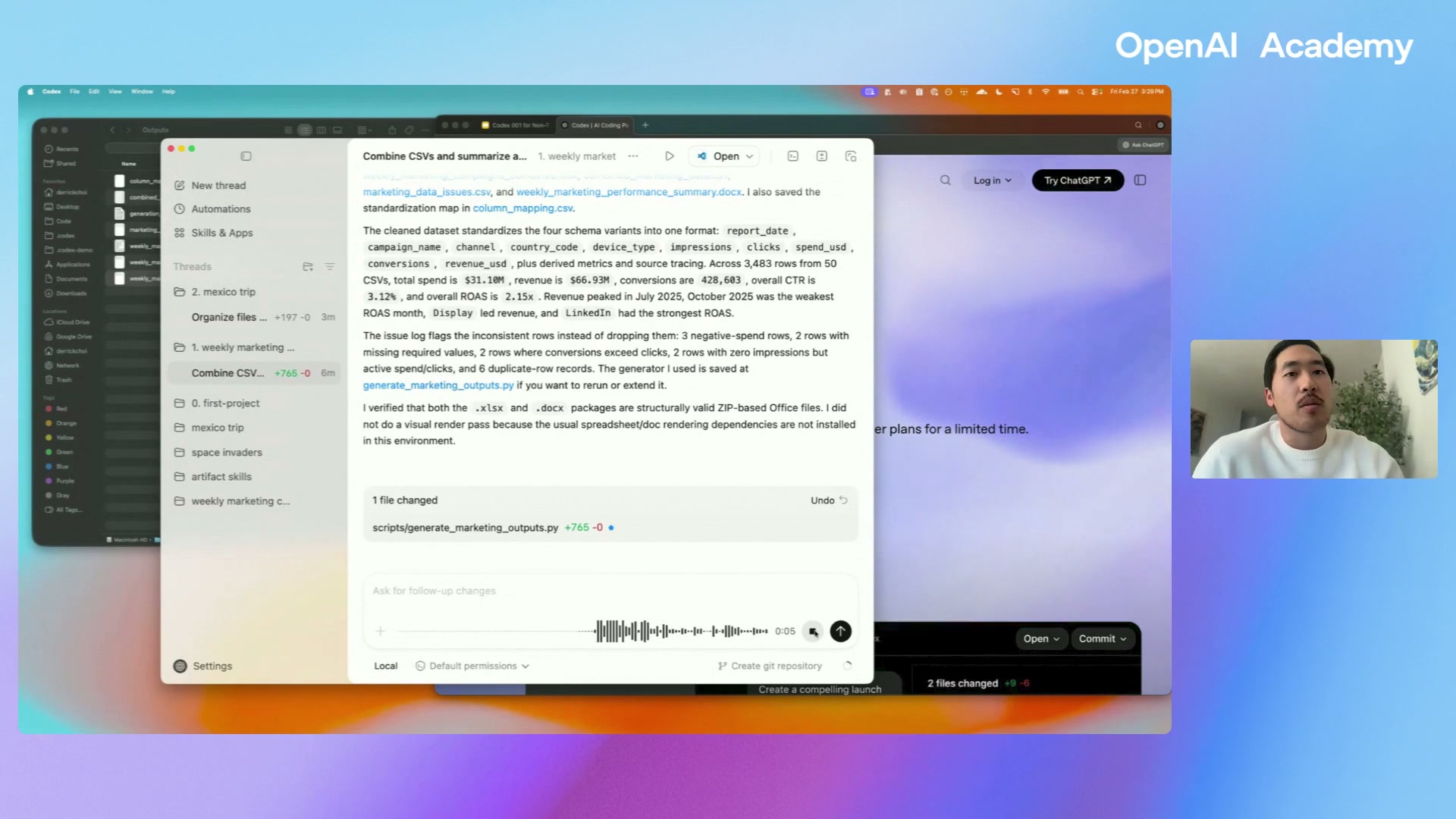
.docx change log, an issue report, and an HTML summary page.Demo 2 — 200+ messy trip files → categorized sub-folders
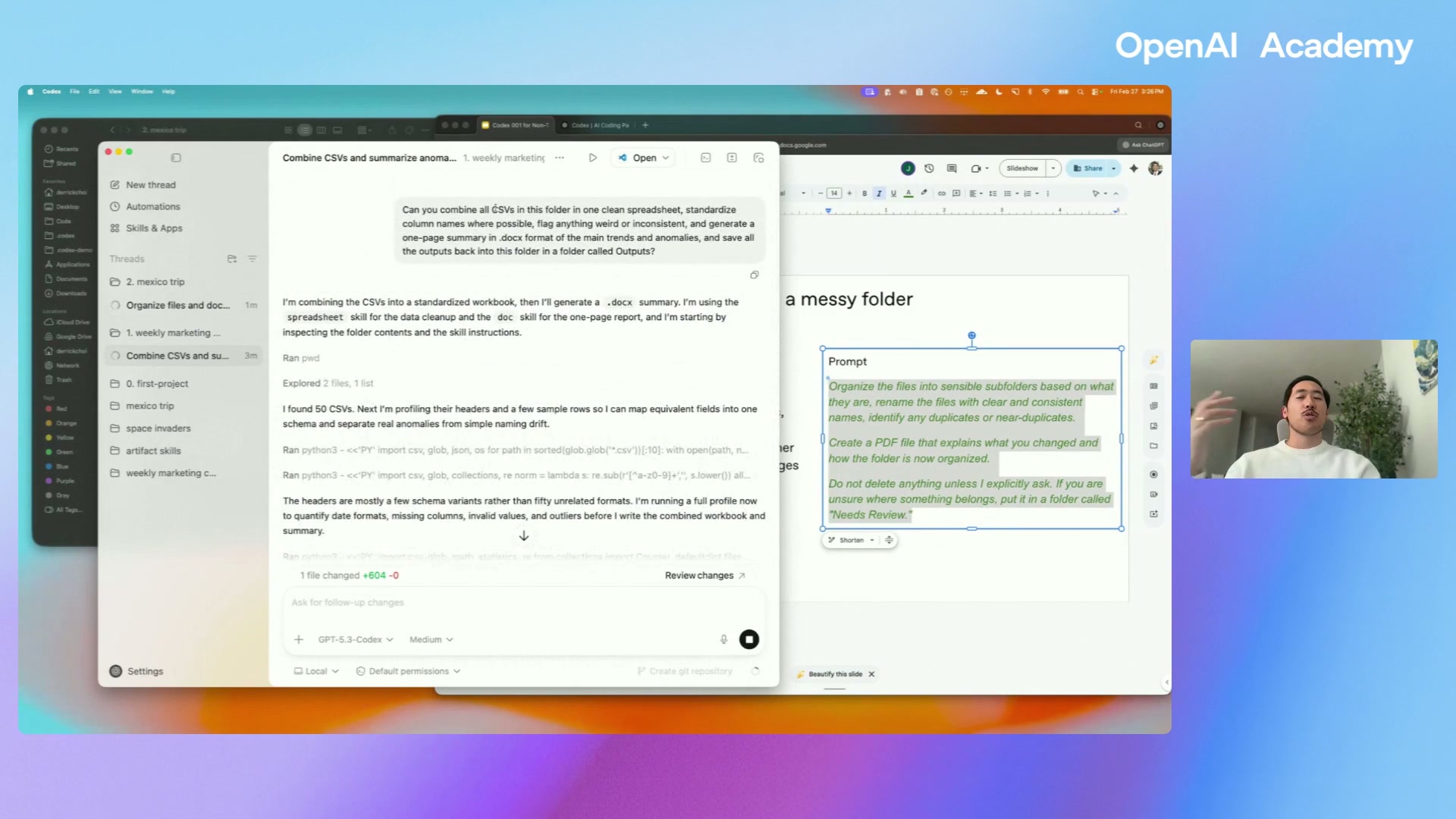
A folder from a Mexico trip with photos, screenshots, PDFs, receipts, and scans. Codex reads file contents (not just extensions), renames consistently, and sorts into Travel / Finance / Notes / Reports. Ambiguous items land in a needs-review folder.
Demo 3 — Interactive dashboard from the same data
A follow-up turn, not a new thread. Codex reused the cleaned dataset from Demo 1 and produced an interactive HTML/JS dashboard with filters for month, channel, country, and device.
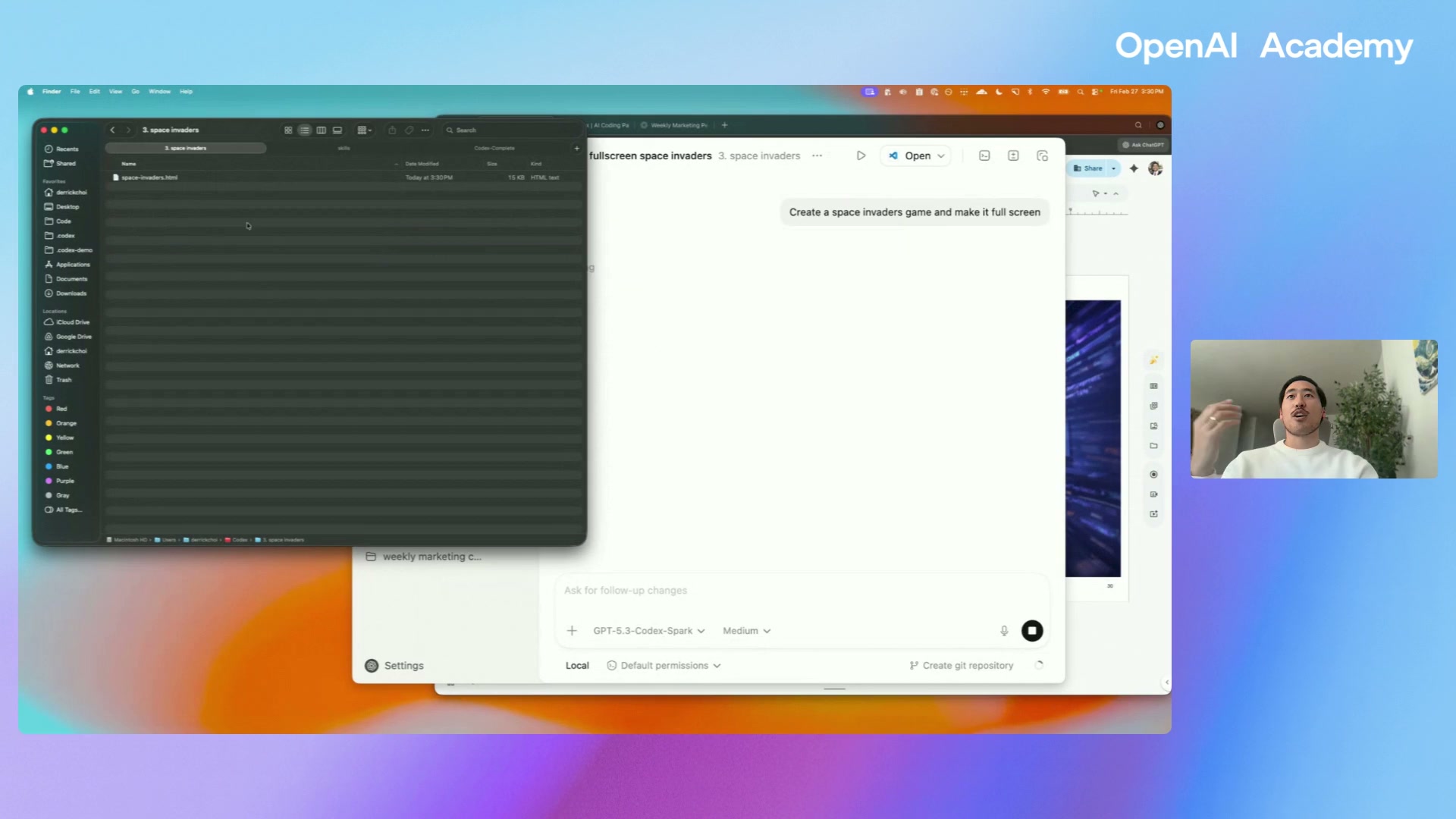
Demo 4 — Space Invaders in 5 seconds (Spark)
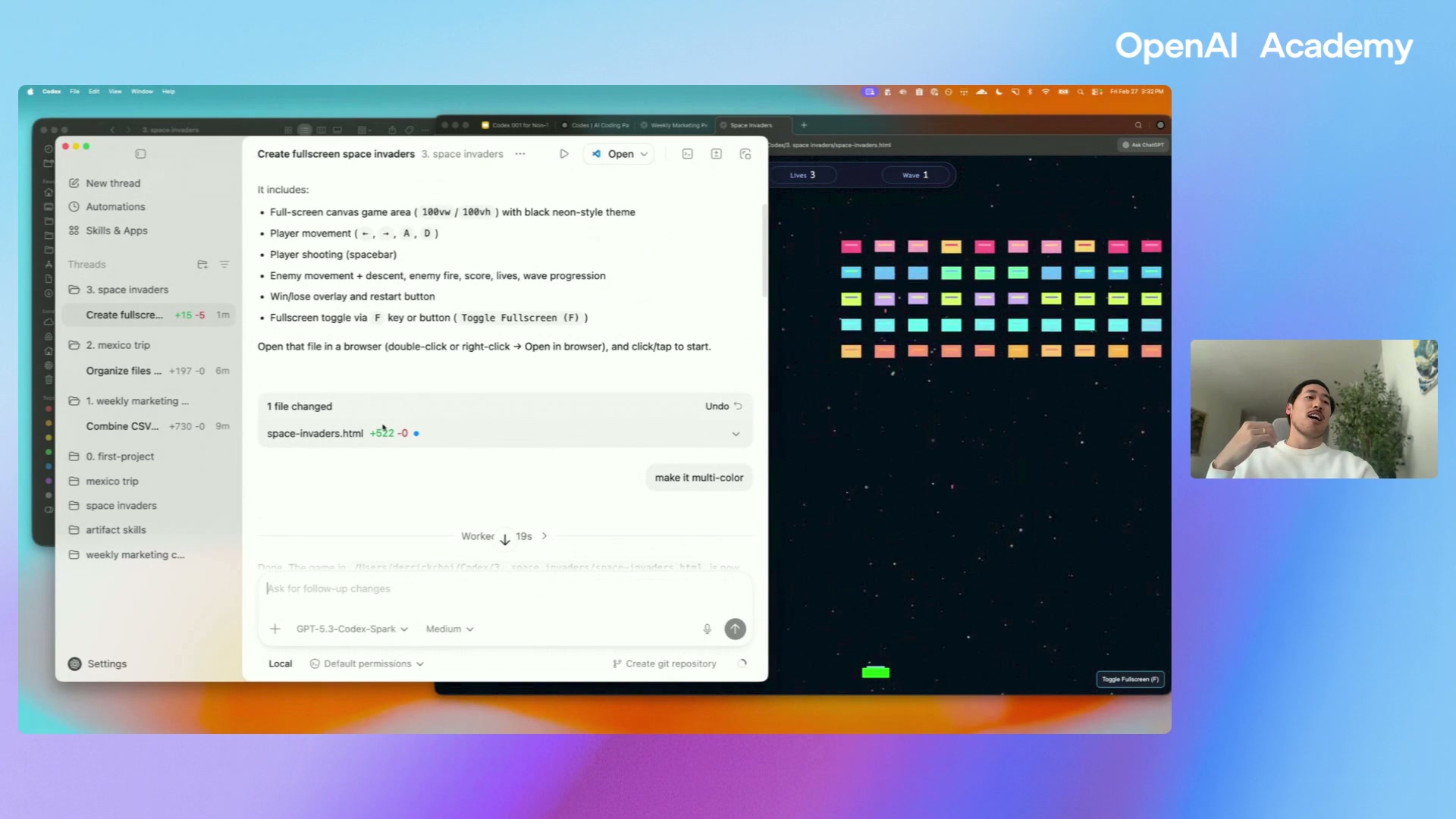
The pattern in all four demos: describe the outcome, not the steps. Codex inspects the files, picks an approach, writes the code, validates, and returns results. You iterate in natural language like you would with a teammate.
Chapter 06Skills: turning prompts into playbooks
Skills are saved workflows. If you keep writing the same prompt (“summarize this doc, remove jargon, save as .docx”), make it a Skill and call it with $skill-name.
Bundled skills worth knowing
Slide Generator
Turns a URL, a doc, or a brief into a deck using the OpenAI template.
Image Gen
Embedded image generation that Codex can call during any task.
Docx editor
Edit or review Word files in place — redlines, structural rewrites, formatting.
Sora
Video generation as a callable step inside any thread.
Transcribe
Audio/video → text as a pipeline step, not a destination.
Skill Creator + Installer
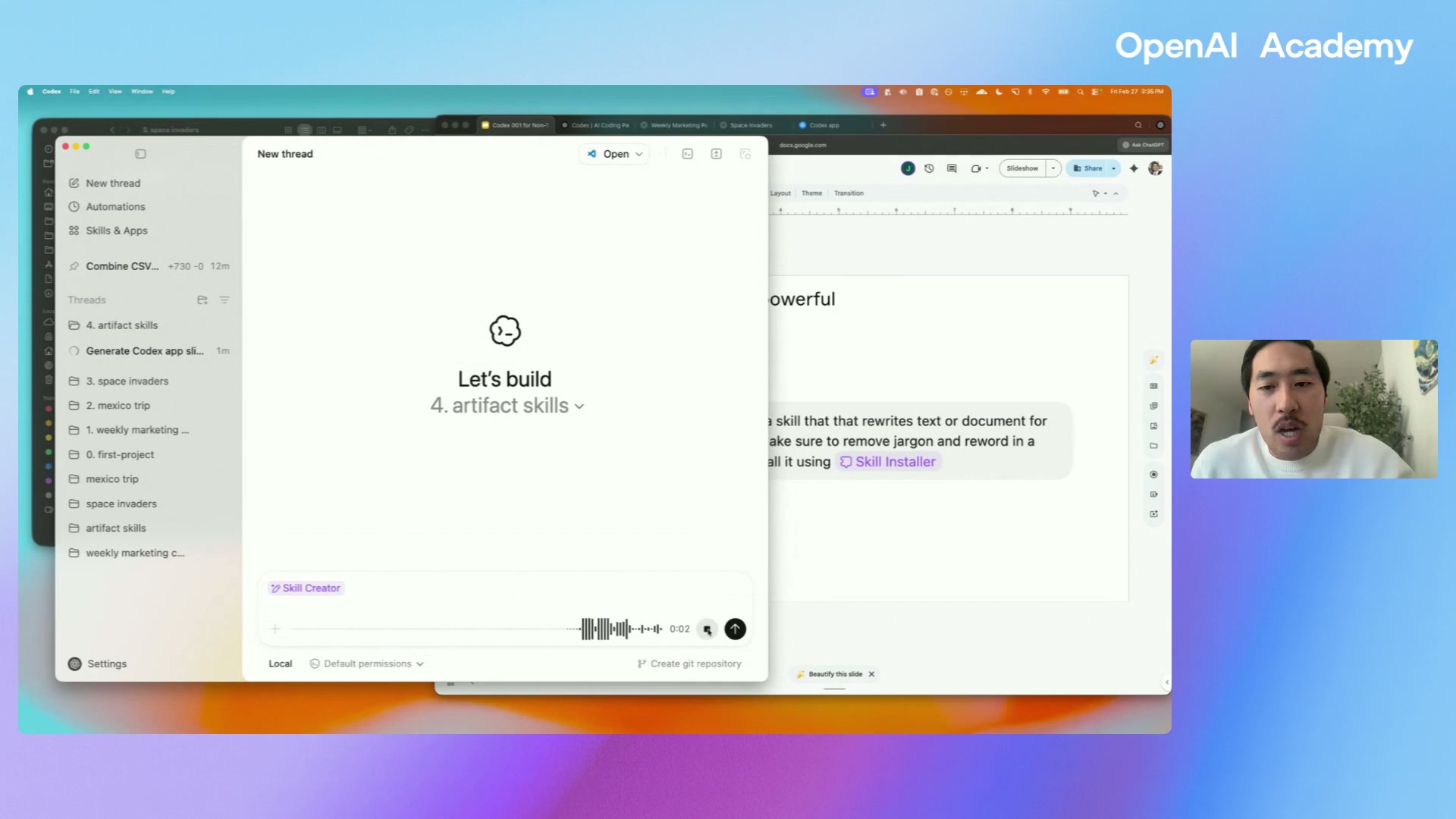
Skills that create and install other skills. Describe the playbook, get a reusable shortcut.
Make your own skill, without writing code
Typical “skill creator” prompt shape:
“Create a skill that [rewrites technical docs]. It should [remove jargon and reword in a digestible way for non-technical readers], and save output as [.docx]. Then install it on my computer.”
Once installed, you invoke it with $skill-name in the composer and hand it the new input file or URL.
Apps — connect the tools you already use
In Settings → Apps (or Skills & Apps), toggle on integrations you already use in ChatGPT. The same connectors work inside Codex:
Slack Gmail Google Calendar Google Drive Microsoft Office GitHub Notion Salesforce Obsidian
Chapter 07Automations: scheduled work in the background
Anything you do on a cadence — every Monday, every morning, every hour — is a candidate for an Automation. Codex runs it in the background and leaves the output where you asked.
Six automations worth copying
Weekly CSV rollup + summary
“Combine new CSVs in this folder into one clean spreadsheet, flag issues, and generate a one-page summary.”
New file inbox cleanup
“Look at newly added files in my Downloads or project folder, rename them consistently, and create a changelog.”
Daily doc summary
“Summarize any new documents dropped into this folder and produce a short brief with action items.”
PDF extraction pipeline
“Extract key fields into a CSV and flag anything low-confidence.”
Weekly report generator
“Create a weekly report from files in this folder and save it as markdown plus a slide-ready summary.”
Plain-language doc rewrite
“Rewrite any new technical docs in this folder for non-technical readers.”
How to create one
- Click Automations in the sidebar, then New automation.
- Name it and pick the project it should run in.
- Paste the prompt. Keep it explicit about inputs, outputs, and where to save.
- Choose cadence — every Wednesday at 9am, every hour, etc.
- Save. Codex will run on schedule and post results back to the thread.
Point the prompt at a consistent folder and let the same automation run forever. If you move the folder or change the schema, update the automation prompt — don't start over.
Chapter 08Thread automations & the monothread pattern
A step beyond scheduled prompts: an automation that re-enters the same thread on a schedule. The context, corrections, and learnings from past runs are already there — so the natural prompt becomes very short.
Why long-lived threads suddenly work
A lot of agent-product design assumes long threads eventually degrade — which pushes you toward spinning up new chats and writing context summaries. The Codex team's recent work on compaction weakens that assumption. A thread that stays useful across many turns should keep working on the same recurring task.
With good context compaction, a thread's value increases over time. The thread remembers what you corrected, what you ignore, which sources usually matter. Each run is a smarter run.
What you can now do with a single pinned thread
- Attach an interval trigger (e.g., every 15 or 30 minutes).
- Create the automation from inside a chat, attached to the current thread — no switching tabs.
- Steer the automation conversationally: if results drift, tell Codex to update the automation prompt directly.
- Rely on Codex reading its own history. Codex is good at picking up context from previous rollout files and threads — add that instruction to almost every automation.
Example: the workstream thread
Typical shape of a workstream thread:
- Source of truth — a Notion database, Obsidian vault, or folder of markdown files.
- Connectors — GitHub, Slack, Gmail, Calendar, Notion.
- Cadence — every 30 minutes, or hourly.
- Per-run job — walk the list, execute the next step per task, leave notes for itself, spawn sub-agents when needed.
- To-do list for you — Codex writes back what needs human review or approval.
The thread ends every run with two lists: things Codex left for you and things you left for Codex next run. That's the mechanism that makes the loop stable over weeks.
Chapter 09The proactive teammate workflow
The most useful Codex thread in the wild today is a “teammate” thread that watches Slack, Gmail, GitHub, Calendar, and your docs on an hourly cadence and surfaces only what matters.
The one main + many subagents pattern
Main teammate thread
Orchestration and judgment. It wakes up on an interval, reads the smallest useful live signal, uses a specialist sub-agent only when the lane matters, and decides whether to notify you or stay quiet.
Long-lived sub-agent threads
Depth in their specialty: one for PRs, one for inbox triage, one for calendar, one per active project. Spawned by the main thread as new workstreams appear.
The behaviour you actually want
Less “something changed,” more “this changes what you should do.” During launch week, a teammate thread might watch merged use-case PRs, a migration PR going green, new Slack DMs, and calendar moves — and stay silent on everything else. Once docs merged, it stopped rechecking them. While the migration PR stayed blocked, it stayed quiet.
Two high-leverage sub-agents to start with
Inbox triage thread
Ask Codex to find messages that actually need replies and draft responses in your style without sending. Once the thread has seen what you approve, reject, shorten, and rewrite, it's a much better place to add an automation that watches the inbox.
PR watcher thread
Keep the same thread around after Codex helps with a change. It already knows the intent, files touched, tests, tradeoffs, and reviewer concerns — so you can ask it to watch CI, reviews, mergeability, and conflicts. Watching is recurring; merging/pushing stays explicit.
How to bootstrap your own
- Start one thread around a real recurring task.
- Correct it a few times. Tell it what to ignore. Tell it what needs approval.
- Put that thread on an automation.
- When it gets something wrong, steer the automation prompt from inside the chat.
You don't need an elaborate orchestrator. You can just ask: “Keep an eye on this for me.”
Chapter 10The 4-step framework for reliable results
Whether you're on your first prompt or your hundredth automation, the same pattern keeps results good.
1 · Pick something repetitive
Start with a workflow you already know well, that's easy to verify and easy to judge. Preferably something annoying that happens over and over.
2 · Give Codex the right materials
Put the files, docs, notes, and CSVs into the workspace you pointed it at. Context is where quality comes from.
3 · Describe the outcome clearly
Be specific about the goal, what good looks like, examples, what not to do, and how Codex will know when it's done. You don't need to spec every step.
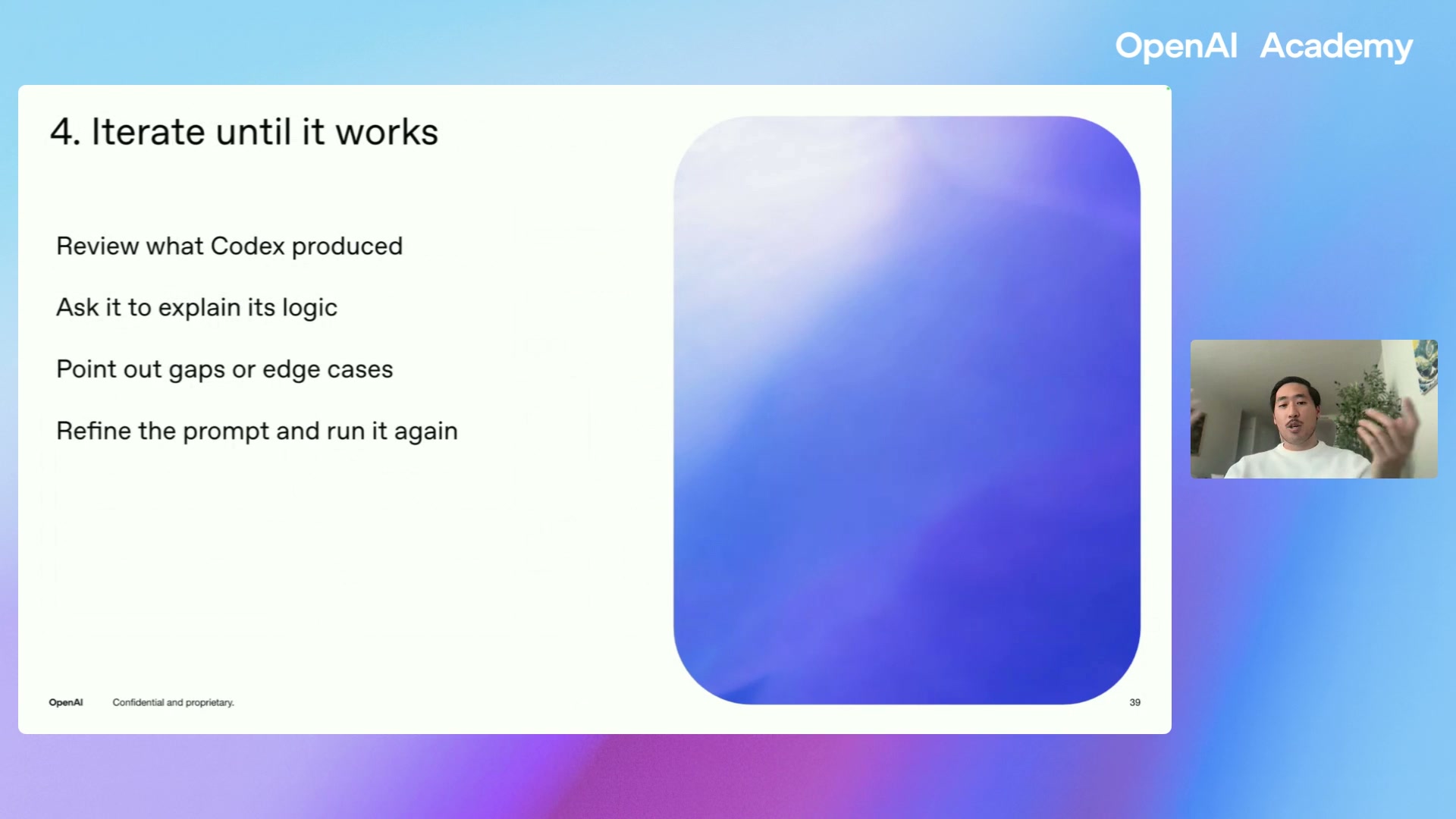
4 · Iterate until it works
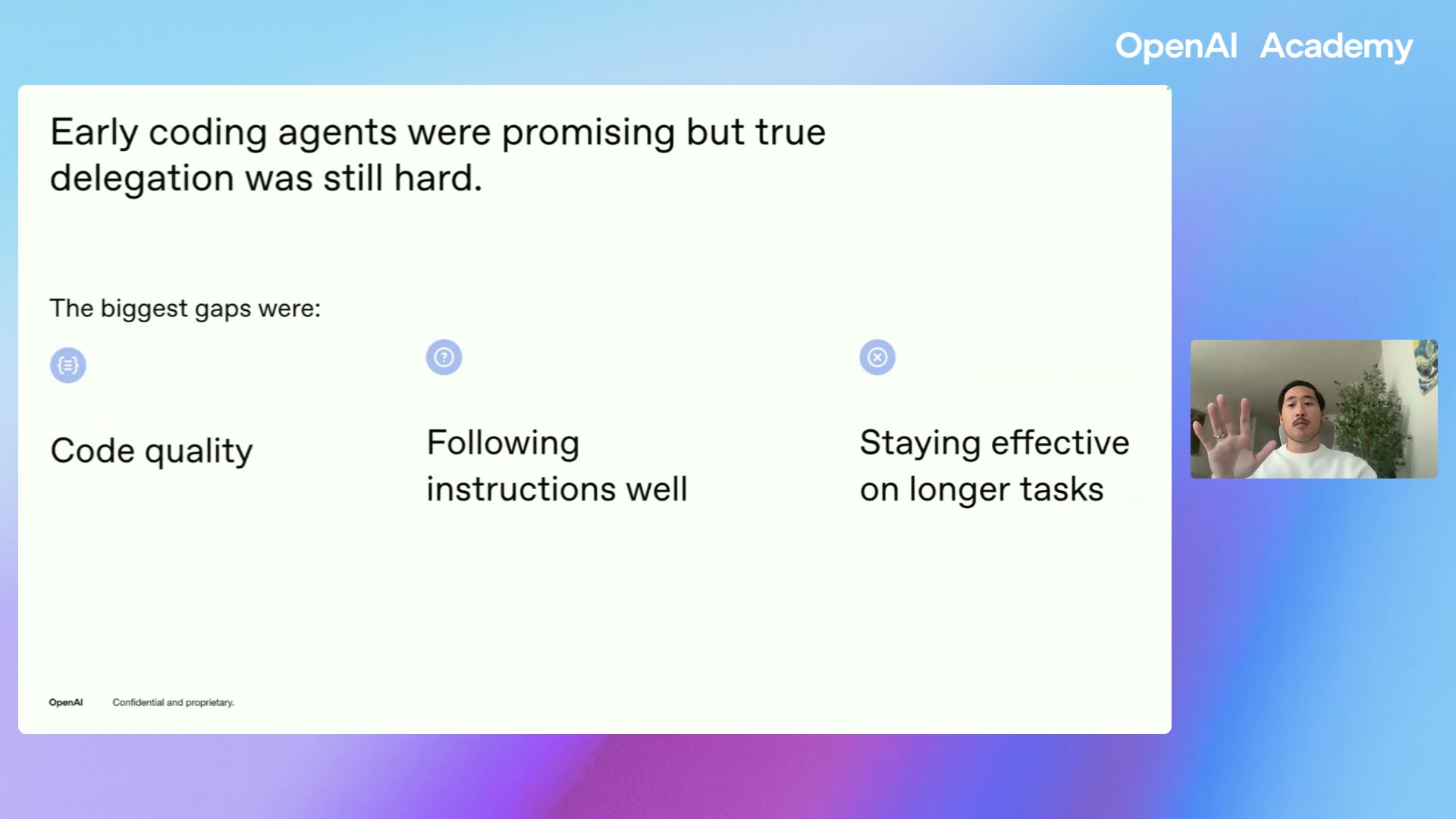
The first result is the starting point, not the answer. Review, ask it to explain its logic, point out gaps, refine the prompt. Talk to it like a teammate.
The team adoption pattern
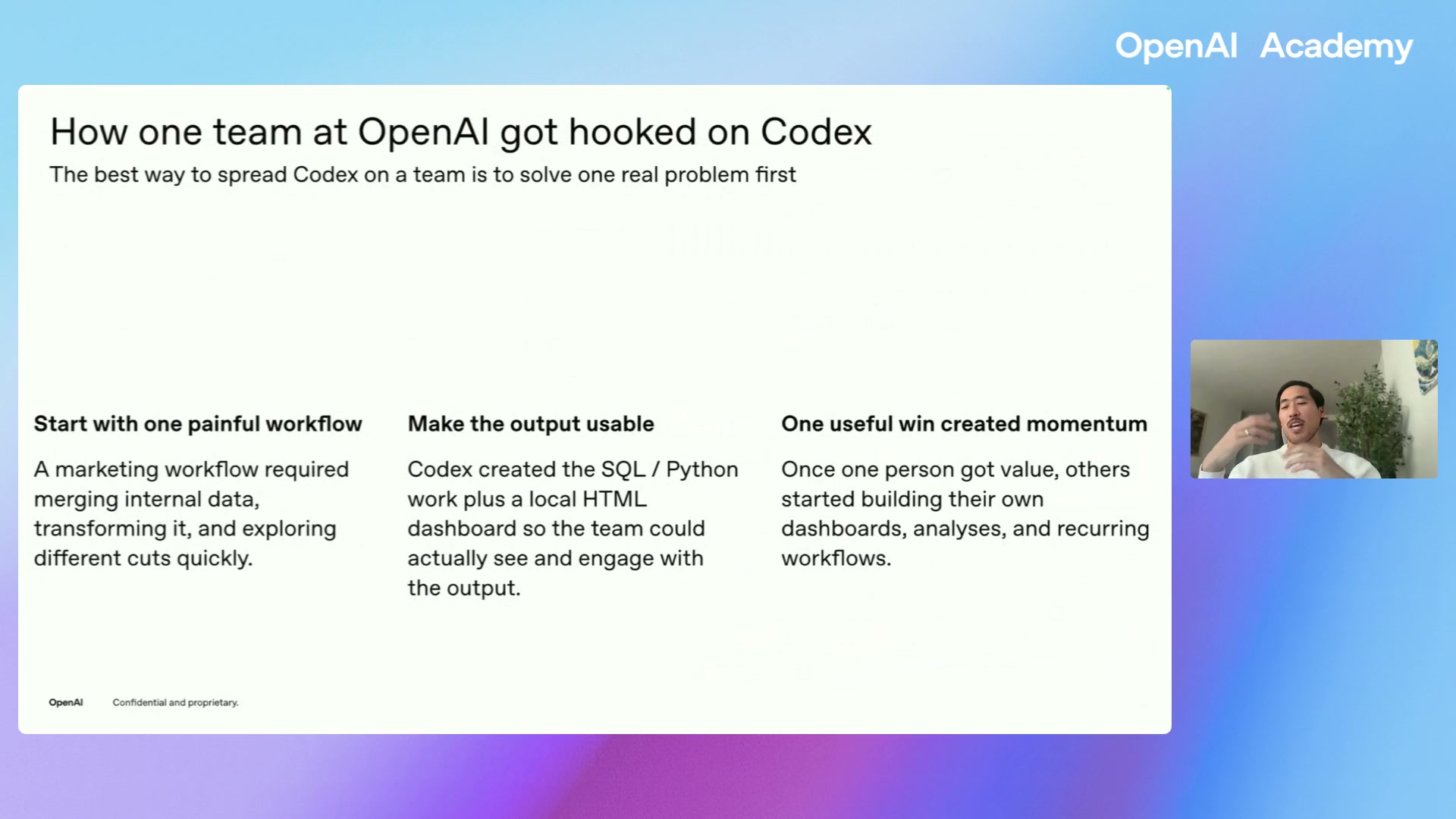
Not through a mandate. Through one useful win that makes the rest of the team curious. The OpenAI marketing team adoption story is canonical: someone turned a painful SQL / Python workflow into an interactive HTML dashboard, others saw it, and within a week they were each building their own.
Chapter 11Advanced moves & quick reference
A compact reference of everything worth knowing — prompting habits, power-user moves, and the answers to the questions that always come up.
Prompting habits that matter
- Prompt like a teammate, not like you're invoking a tool. Old tricks like “you are a financial analyst” aren't needed anymore.
- Start from the outcome, not the steps. Codex picks the implementation.
- Name the inputs and outputs. “Save outputs to
/reports/2026-04/” is always better than “save somewhere reasonable.” - Include past context. Ask Codex to look at previous threads and rollout files — it picks up context well.
- Stay conversational. Follow-up in the same thread beats re-prompting in a fresh one for anything recurring.
Power-user moves
Plan Mode
Shift + Tab on Mac. Codex drafts a plan and asks follow-ups before touching anything.
/review
Ask Codex to review its own code or a repo. Useful once work moves from local folder to a shared repo.
Pinned threads
Pin recurring threads in the sidebar so long-lived workstreams stay put while one-offs churn.
Sub-agent spawn
In long-lived threads, let Codex spin up specialist sub-agent threads for new workstreams as they appear.
Voice dictation
Mic icon in the composer. Perfect for long prompts where typing breaks your train of thought.
Edit an automation from chat
Don't hand-edit the automation prompt — ask Codex in the thread to update it. Lower friction, keeps context.
Beginner mistakes to avoid
- Underestimating Codex. The most common “mistake” is staying too small. Give it a genuinely hard task; you'll likely be surprised.
- Skipping materials. Asking Codex to summarize without attaching the thing usually fails; Codex thrives on local context.
- Treating the first result as the answer. Iterating is the feature, not a workaround.
- Toggling Full Access casually. Leave it off unless you know why you're turning it on.
- Starting over every time. If the task recurs, the thread should recur too.
Non-technical skills that transfer most
- Clear written communication — the skill that makes good Slack or email.
- Decomposition — breaking a vague goal into a crisp outcome with inputs, steps, and a done condition.
- Review & critique — reading a first draft and telling Codex what to change.
- Trust calibration — knowing when to let Codex run vs. when to flip Plan Mode.
A minute of timeline context
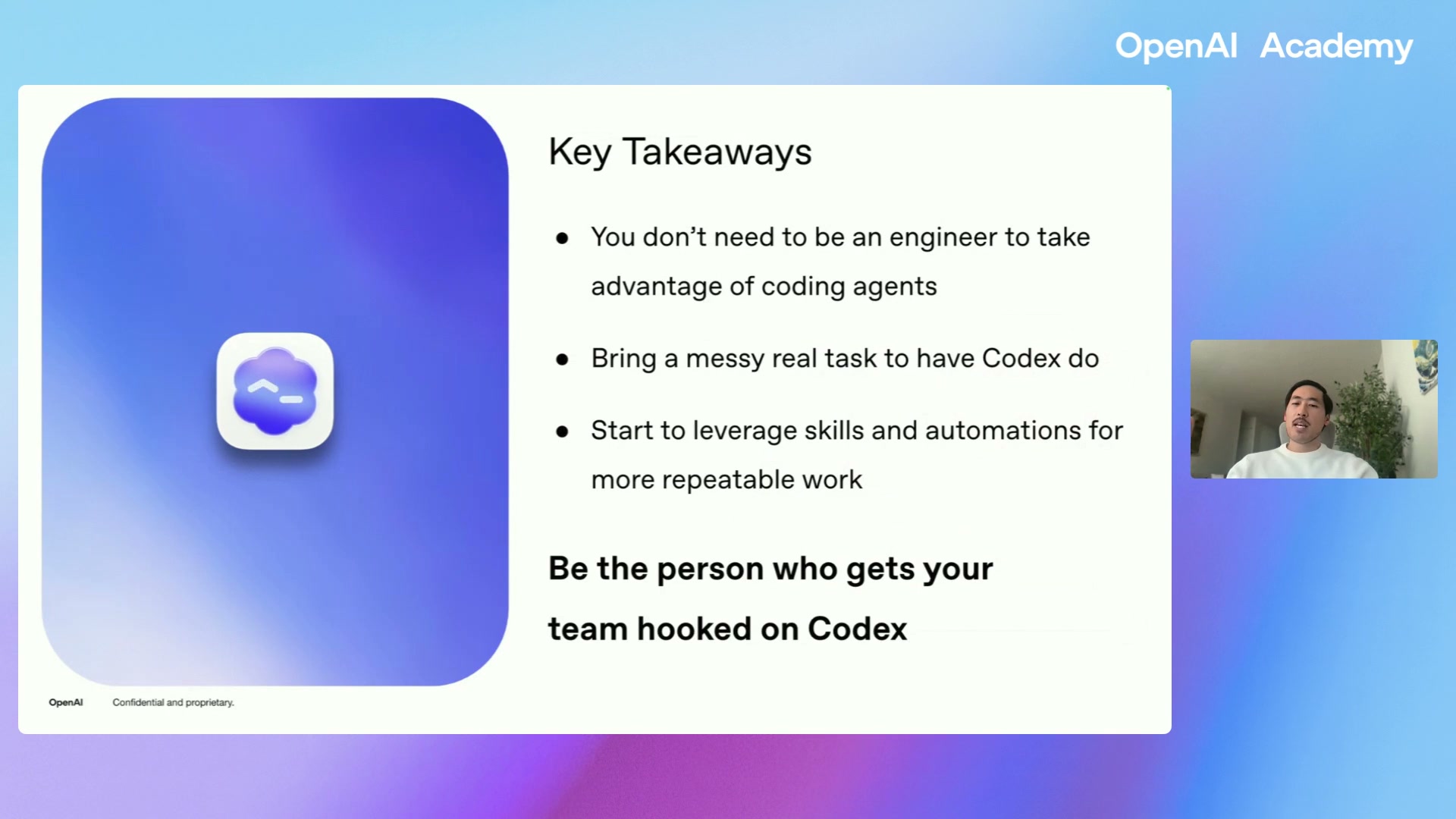
The one thing to take away
You don't need to become an engineer to get value from Codex. Start from one messy, real workflow that you do day after day. Get that one useful win under your belt — then let Skills and Automations turn it into leverage for your whole team.
Download: openai.com/codex
Docs: developers.openai.com/codex
Built from the OpenAI Academy session Introduction to Codex and field reports from @Dimillian and @nickbaumann_.